Inst8 SMS for Zoho CRM - User Guide

Inst8 SMS for Zoho CRM

User Guide v1.0.0

Introduction

About Inst8 SMS

Inst8 SMS for Zoho CRM enables direct SMS communication with your contacts and leads using your Android phone. Send individual or bulk SMS messages directly from your CRM, track message status, and manage conversations all in one place.

Key Features

  • Send individual SMS messages from contact/lead records
  • Send bulk SMS to multiple contacts
  • View message history and conversations
  • Track message delivery status
  • Use your own mobile phone and SIM card for cost-effective messaging

Installation & Setup

Starting the Installation

You can begin the installation process from either:

  • Zoho CRM Marketplace: Find and install the Inst8 SMS extension directly from Zoho CRM
  • Inst8 SMS Gateway: Connect to Zoho CRM from your existing Inst8 SMS account

The installation steps are the same regardless of where you start.

Installation Steps

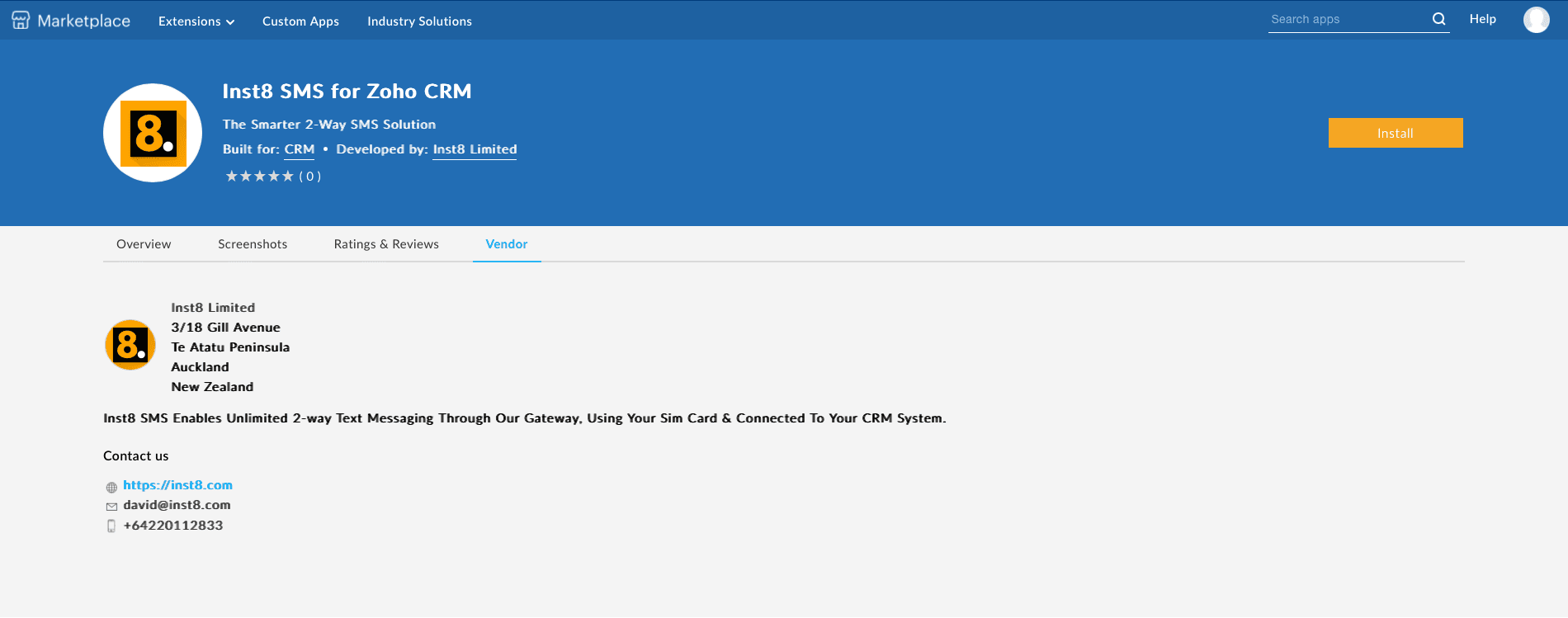
1. Locate the Extension in Zoho Marketplace

Navigate to the Zoho CRM Marketplace from your CRM setup panel.

Zoho Marketplace
  • Click on "Setup" in your Zoho CRM
  • Navigate to "Marketplace" in the left sidebar
  • Find "Inst8 SMS for Zoho CRM"

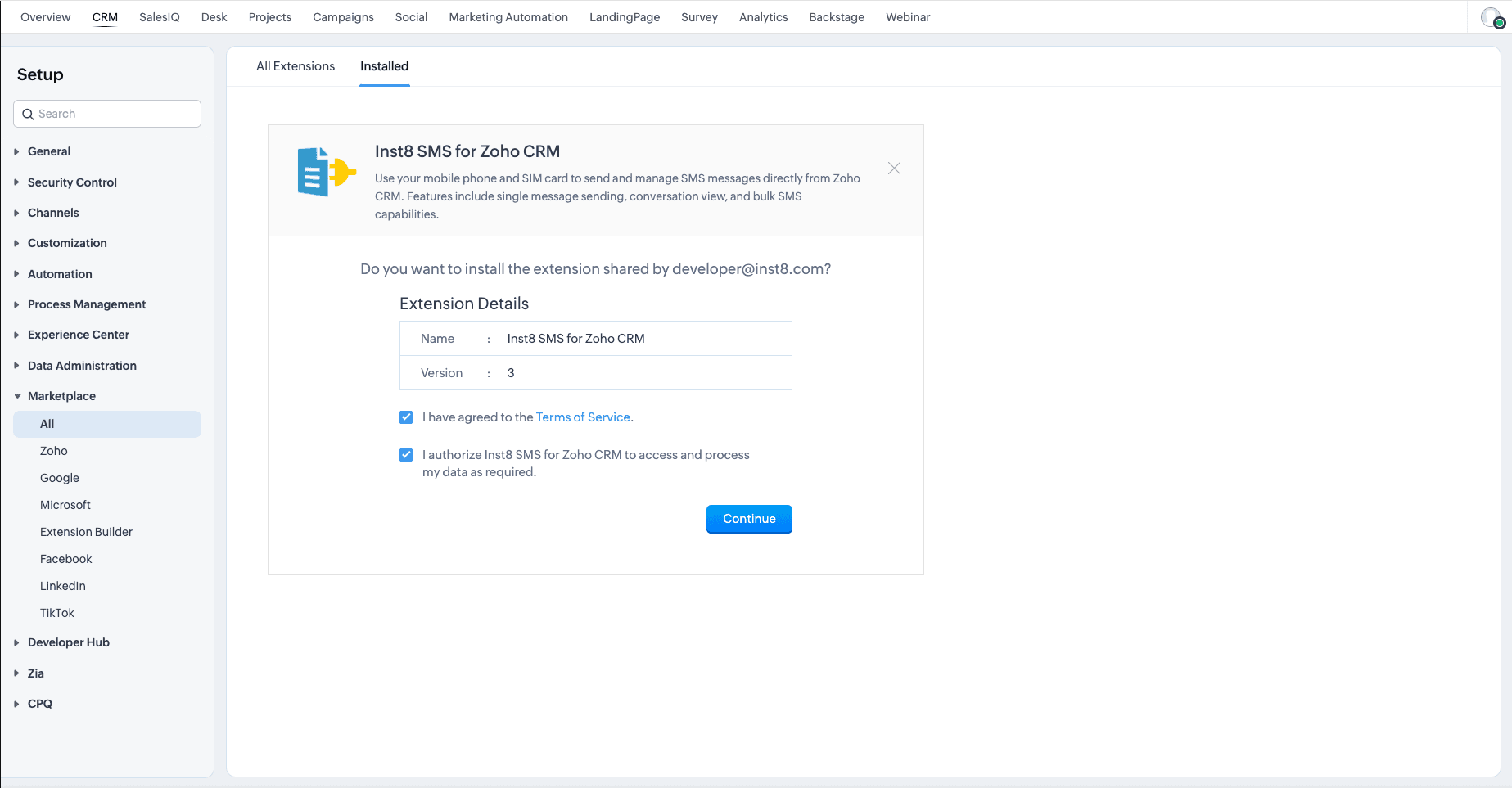
2. Install the Extension

Install Extension
  • Review extension information
  • Check the box to agree to the Terms of Service
  • Check the box to authorize Inst8 SMS to access your data
  • Click "Continue" to proceed

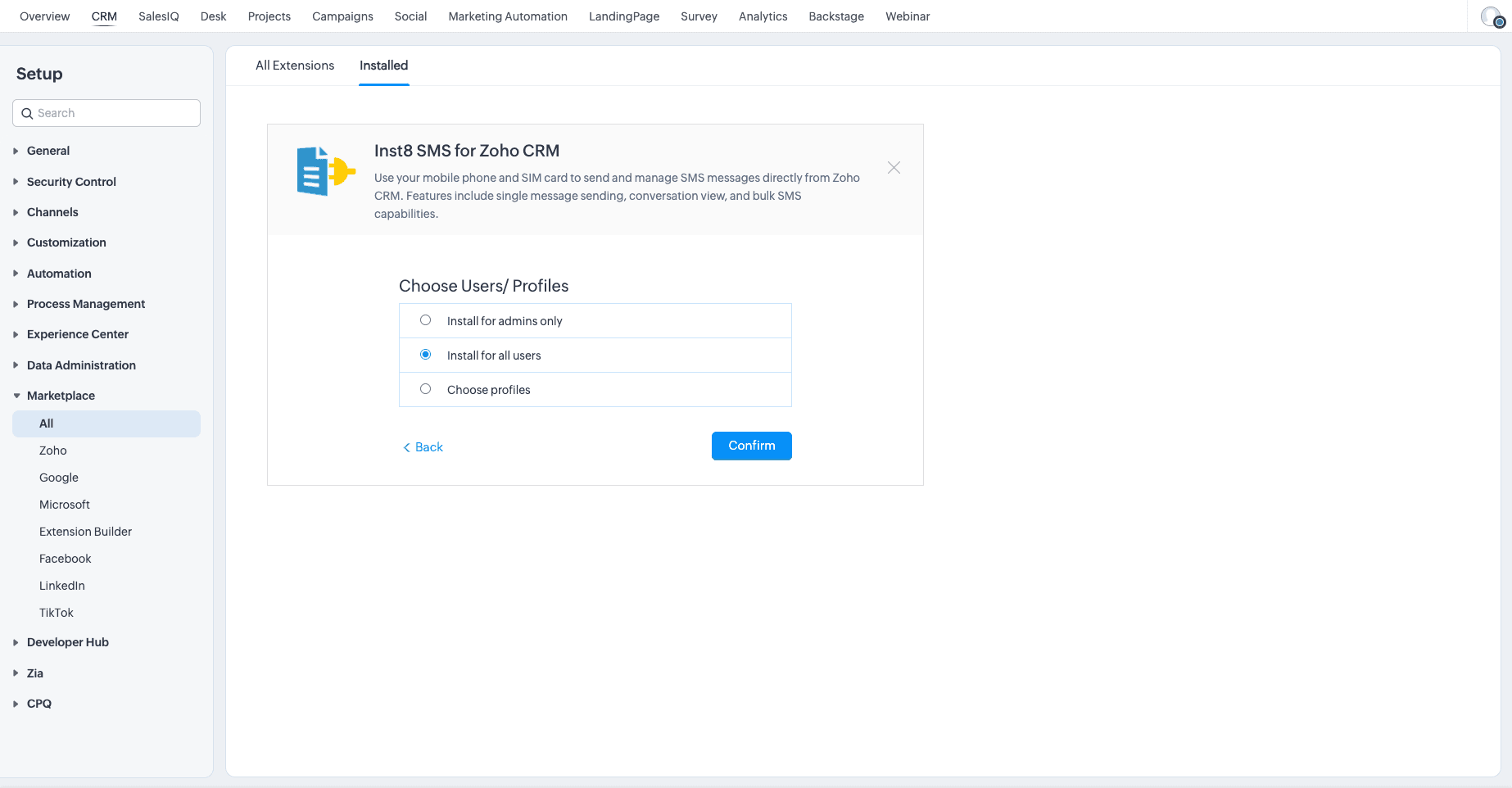
3. User Access Configuration

User Access Configuration
  • Choose whether to install for admins only, all users, or specific profiles
  • Select the appropriate option based on your organization's needs
  • Click "Confirm" to continue

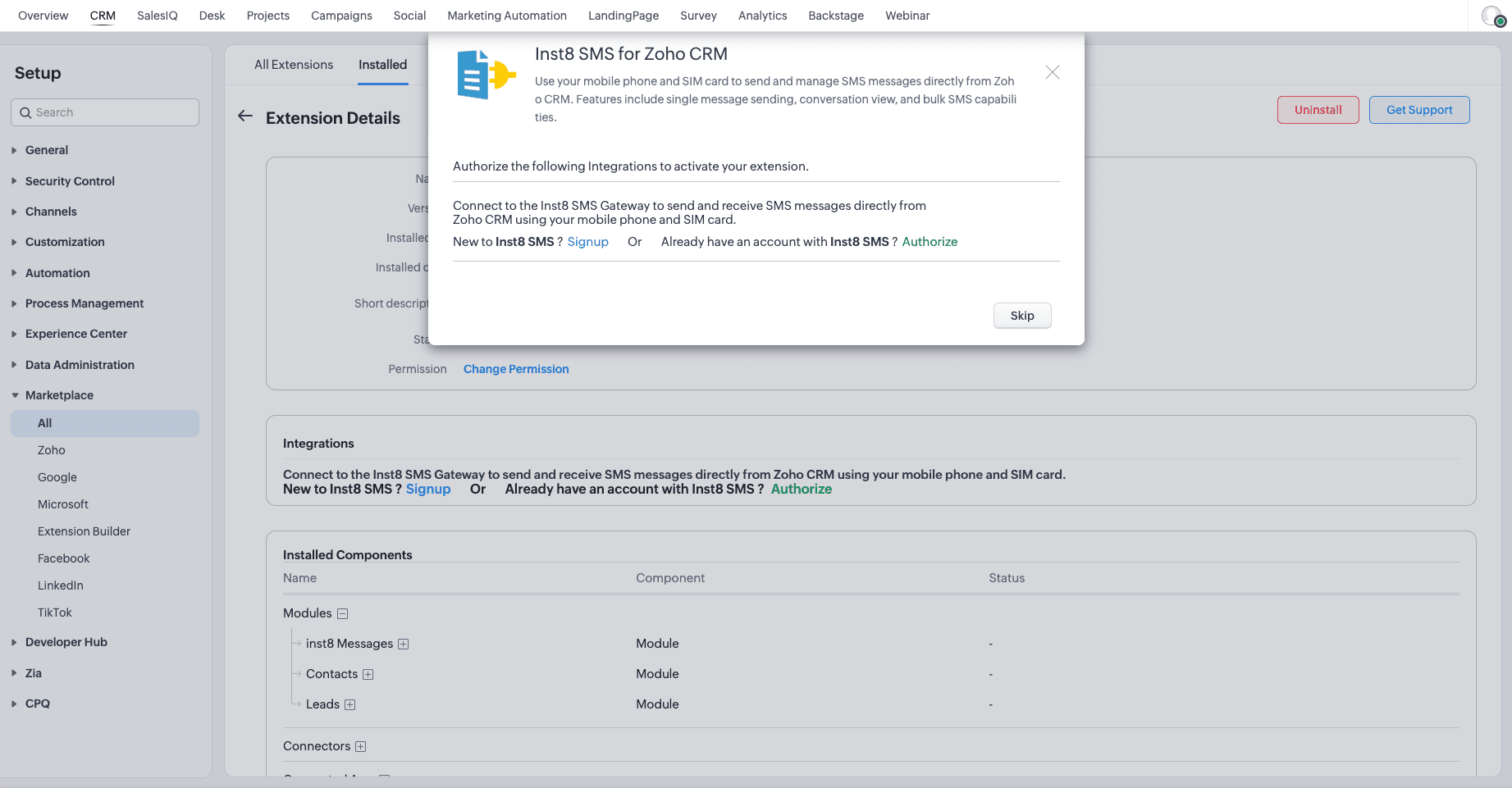
4. Connect with Inst8 SMS Gateway

Connect Gateway
  • Choose between "Signup" if you're new or "Authorize" if you already have an Inst8 SMS account
  • Complete the required authorization steps

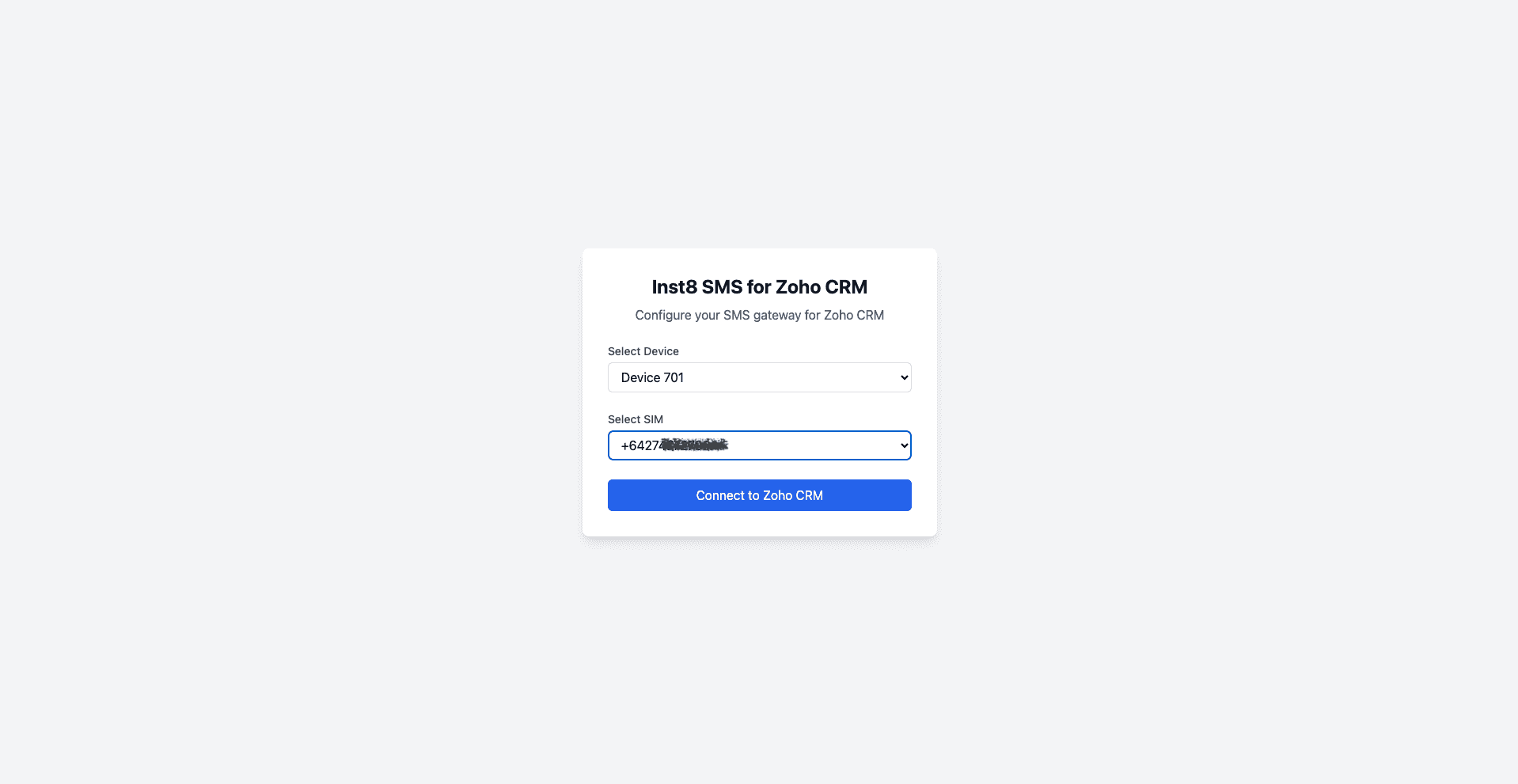
5. Device Configuration

Device Configuration
  • Select your Android device from the dropdown
  • Choose the SIM card to use
  • Click "Connect to Zoho CRM" to finalize the setup

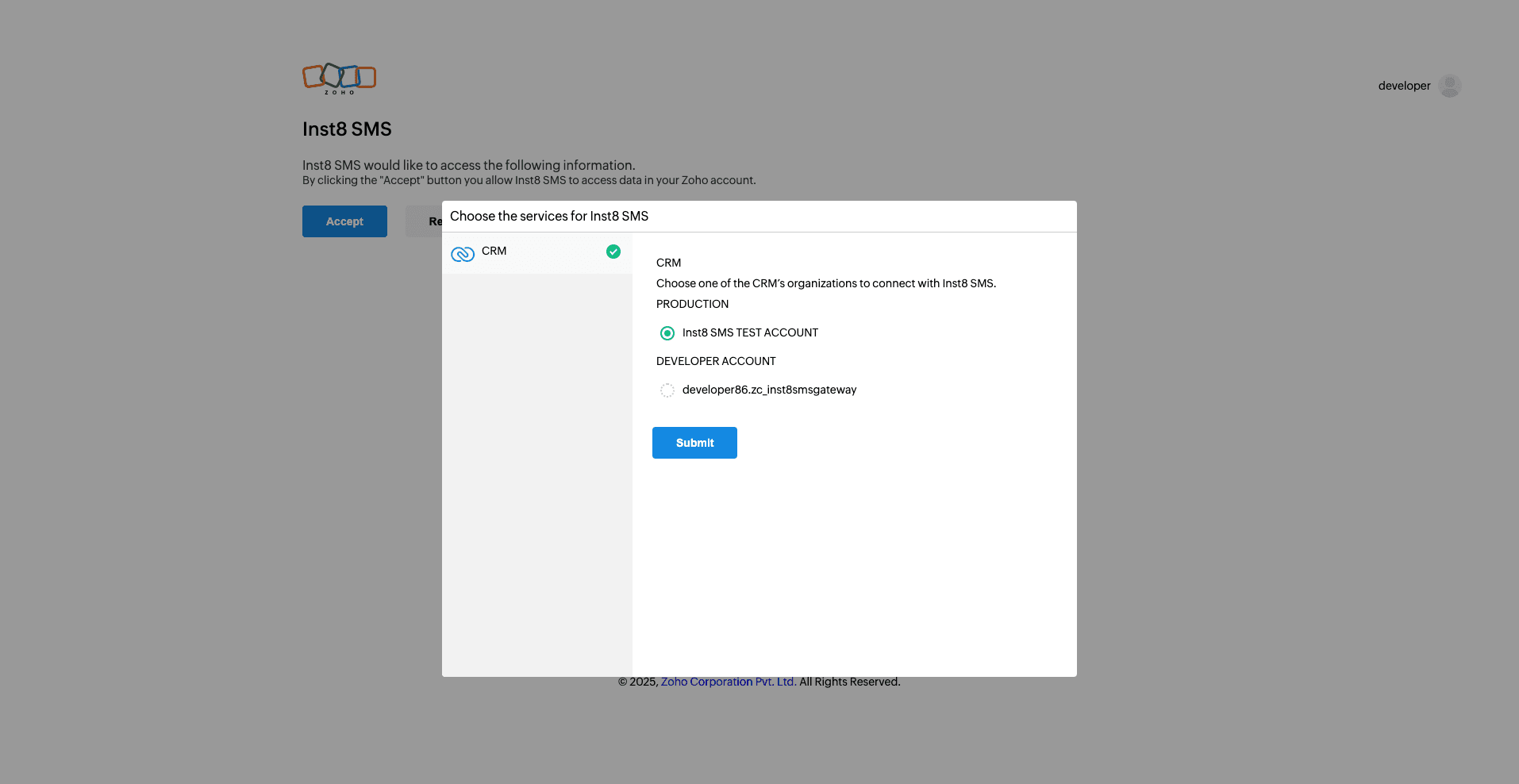
6. Select Zoho Organization

Choose Organization
  • Select the Zoho CRM organization you want to connect
  • Click "Submit" to confirm your selection

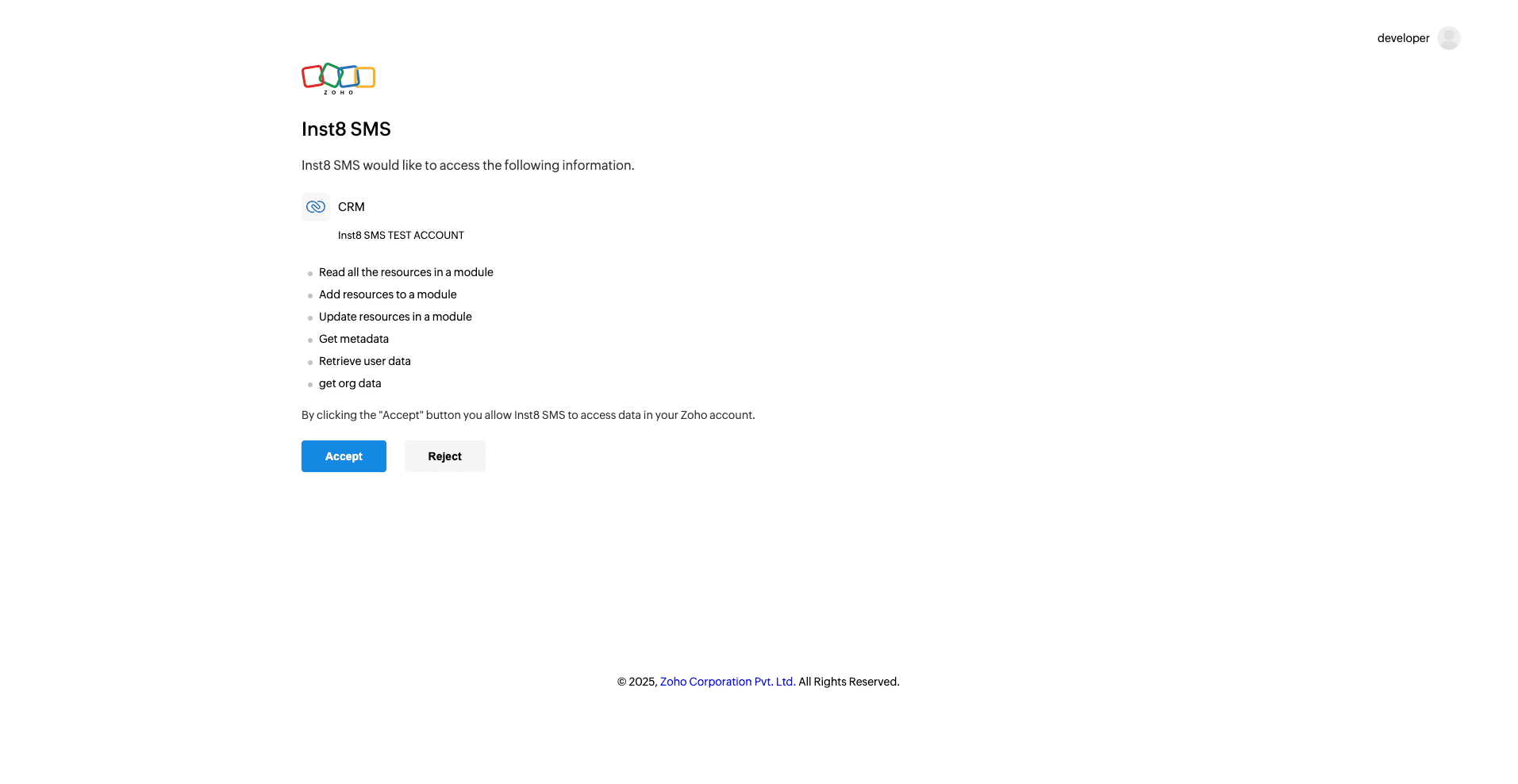
7. Authorize Data Access

Data Authorization
  • Review the requested permissions
  • Click "Accept" to authorize access to your Zoho CRM data

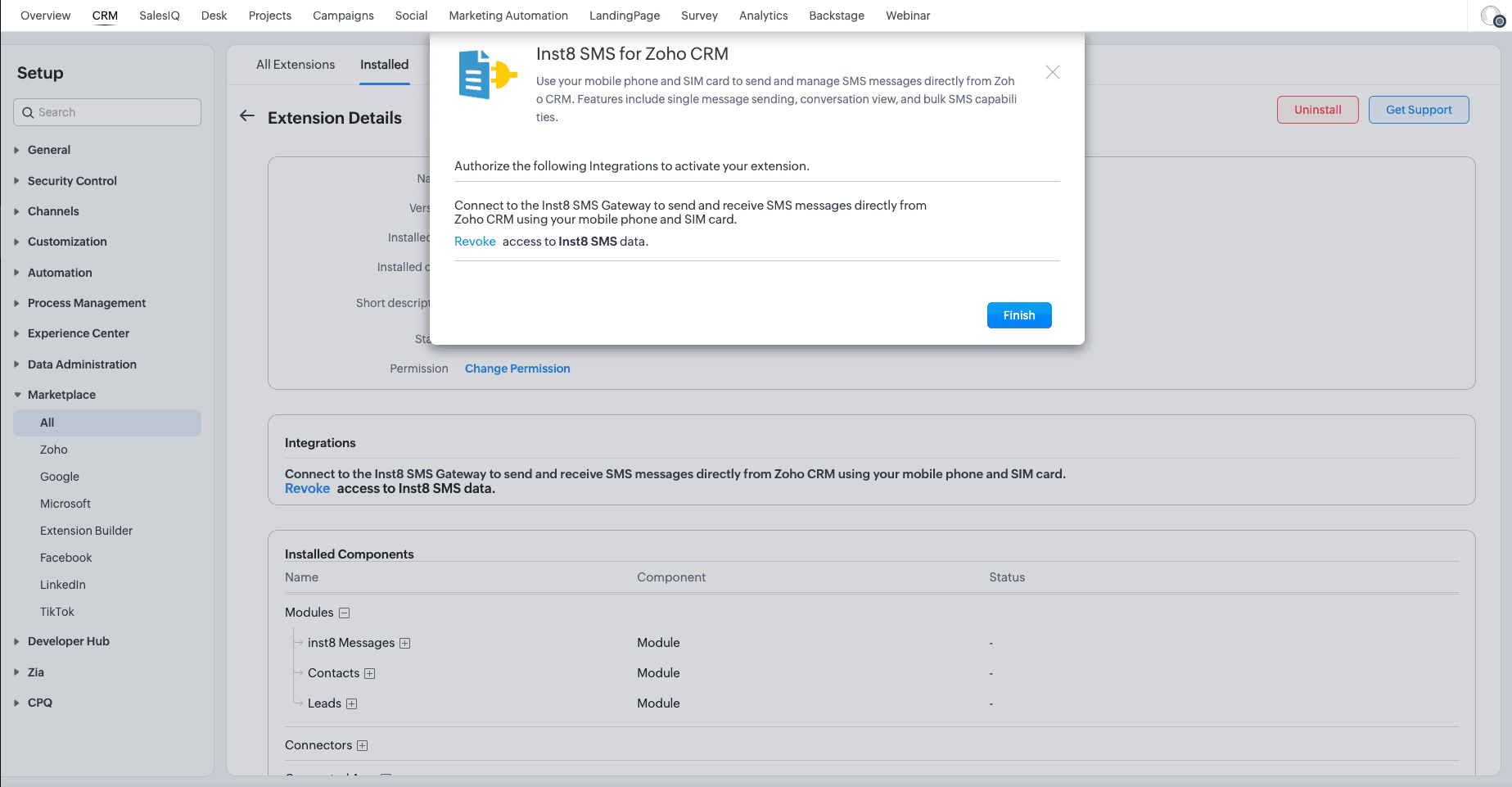
8. Installation Complete

Installation Complete
  • You'll receive confirmation that the installation was successful
  • You can now start using Inst8 SMS within Zoho CRM

Installation Requirements

To use Inst8 SMS for Zoho CRM, you'll need:

  • An active Inst8 SMS Gateway subscription
  • At least one Android device connected to the Gateway
  • A SIM card with available SMS capability
  • Administrator access to your Zoho CRM organization

Features & Usage

SMS Messenger Interface

Messenger Interface
  • View complete conversation history with timestamps
  • Real-time message status updates
  • Easy message composition
  • Character count indicator
  • Clear visual distinction between sent and received messages

Using the Messenger

  1. Navigate to a contact or lead record
  2. Look for the "Inst8 Messenger" section in the related list
  3. View the complete conversation history
  4. Use the text input at the bottom to send new messages
  5. Monitor delivery status for sent messages

Adding Messenger to Contact View

Organize Related Lists
  1. From a contact record, click the "Organize Contact Details" view when you hover your cursor over the "Related List" menu in the left side panel
  2. Find "Inst8 Messenger" in the bottom of the Selected List
  3. Rearrange the order as needed using the up and down arrow buttons
  4. Click "Save" to update your layout

Single Message Sending

Send SMS
  • Access via "Send Inst8 SMS" button on contact records
  • Pre-filled recipient number
  • Character count with SMS part indicator
  • Simple interface for quick messaging

Sending Individual Messages

  1. Navigate to a contact or lead record
  2. Click the "Send Inst8 SMS" button in the top menu
  3. Verify the recipient phone number is correct
  4. Compose your message
  5. Click "Send" to transmit your message

Bulk Messaging

Step 1: Select Recipients

Select Contacts for Bulk SMS
  • Select multiple contacts directly from Zoho CRM list view
  • Filter contacts before selection
  • View selected contact count
  • Click "Bulk Inst8 SMS" on the top toolbar

Step 2: Compose and Send

Bulk SMS
  • Compose a single message to send to all selected contacts
  • Preview recipient count
  • Track character count with SMS part indicator
  • View sending status and confirmation

Managing Bulk Messages

  1. From the contacts or leads list view, select multiple records by checking the boxes
  2. Click the "Bulk Inst8 SMS" button in the top menu
  3. Compose your message in the popup dialog
  4. Review the recipient count and character usage
  5. Click "Send to X recipients" to send your message to all selected contacts
  6. Wait for confirmation that messages were sent successfully

Troubleshooting

Common Issues

Message Not Sending

  1. Check internet connection for both your CRM and Android device
  2. Verify your device is online in the Inst8 SMS Gateway
  3. Confirm your SIM card has sufficient credit/balance
  4. Check that the phone number format is correct

Status Not Updating

  1. Refresh the conversation view
  2. Check your device connection status
  3. Verify that the Android app is running properly
  4. Contact support if issues persist

Integration Disconnected

  1. Check your Gateway app status on your Android device
  2. Verify the OAuth connection in Zoho CRM
  3. Use the "Reconfigure Connection" option if needed
  4. Contact support if connection issues continue

Support

Contact Information

Getting Help

If you experience any issues with the integration, please contact our support team with the following information:

  • Your Zoho CRM organization name
  • Device model and Android version
  • Description of the issue
  • Screenshots of any error messages