
Setup guide · HubSpot
Set up inst8 for HubSpot
Send and receive SMS from inside HubSpot contact records, the inbox, and workflows. Integration runs over OAuth and authorises in a single click.
Step-by-step
- 1
Open the inst8 dashboard
Sign into inst8-sms.com and go to Integrations → Set up HubSpot integration.
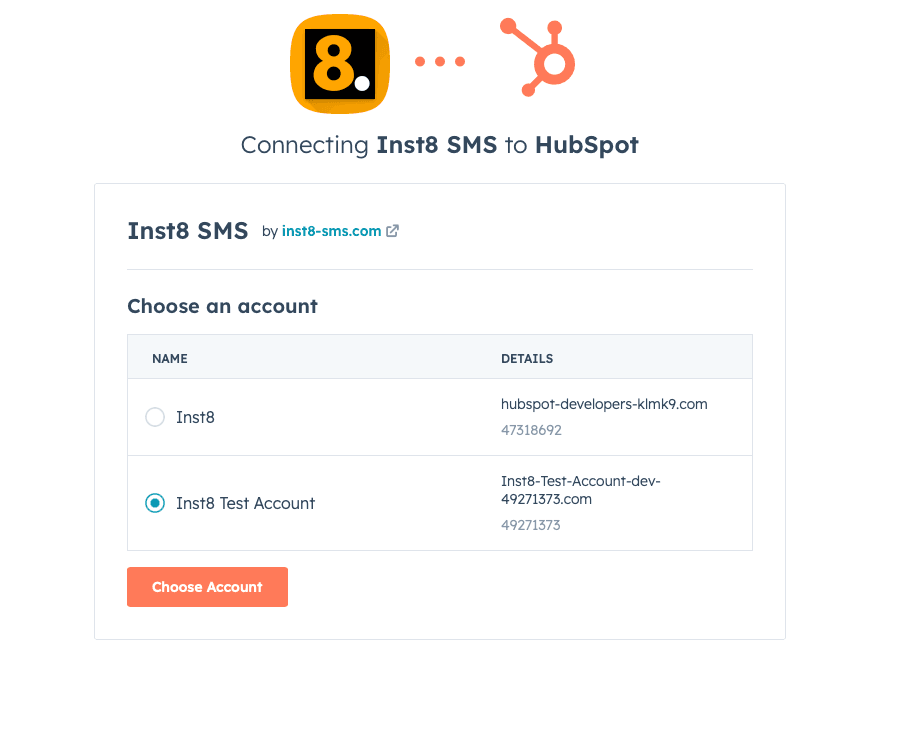
- 2
Pick device & SIM
Select which Android device and SIM card to use for this HubSpot portal.
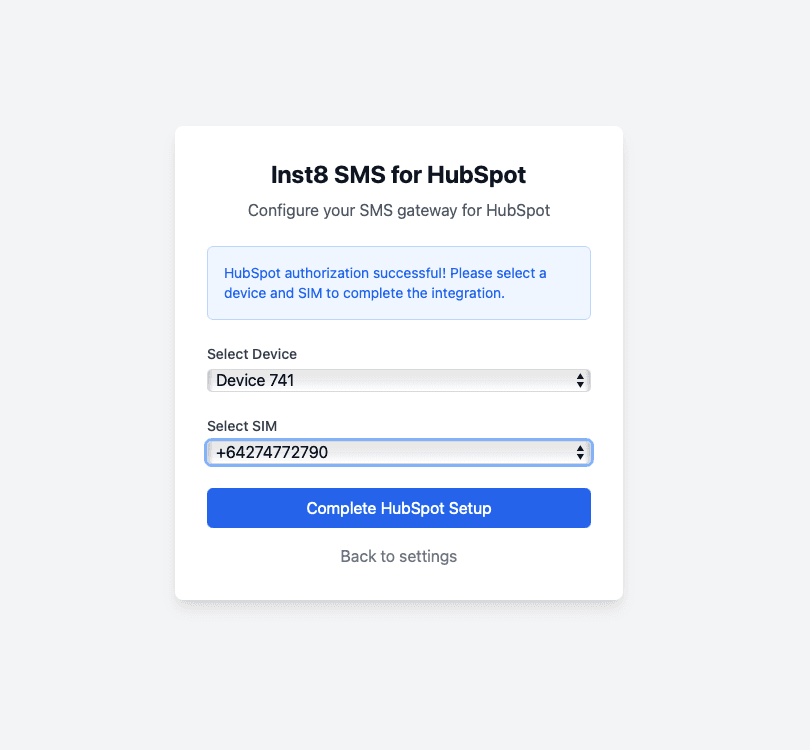
- 3
Connect to HubSpot
Click ‘Connect to HubSpot’. You'll be sent to HubSpot to authorise.
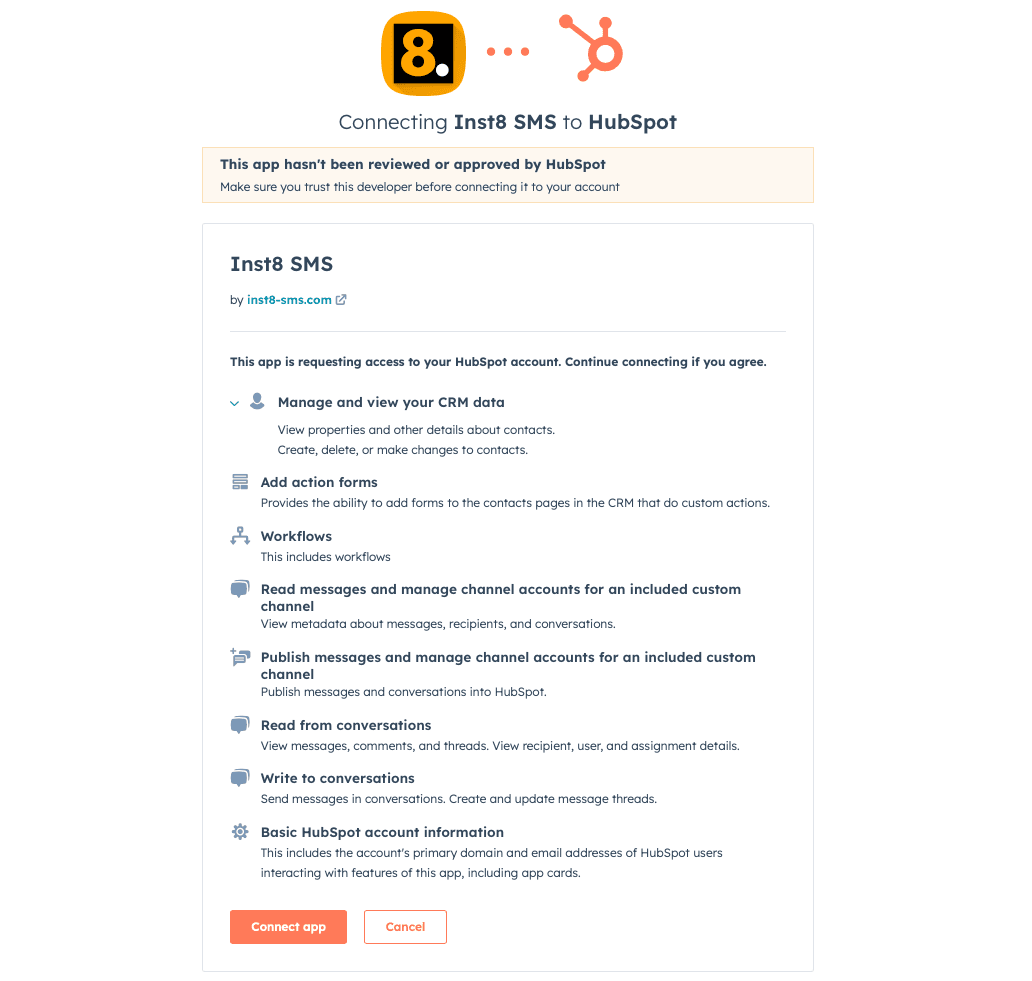
- 4
Register the SMS channel
Back in inst8, click ‘Register SMS Channel in HubSpot’ to add inst8 to your inbox channels.
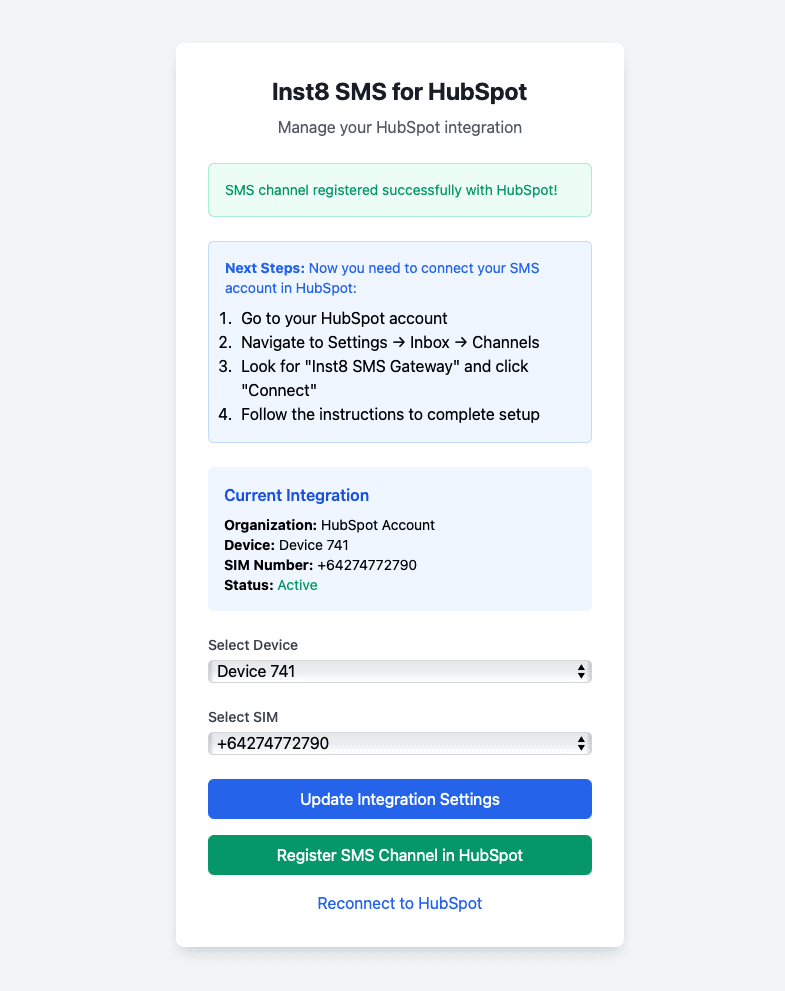
- 5
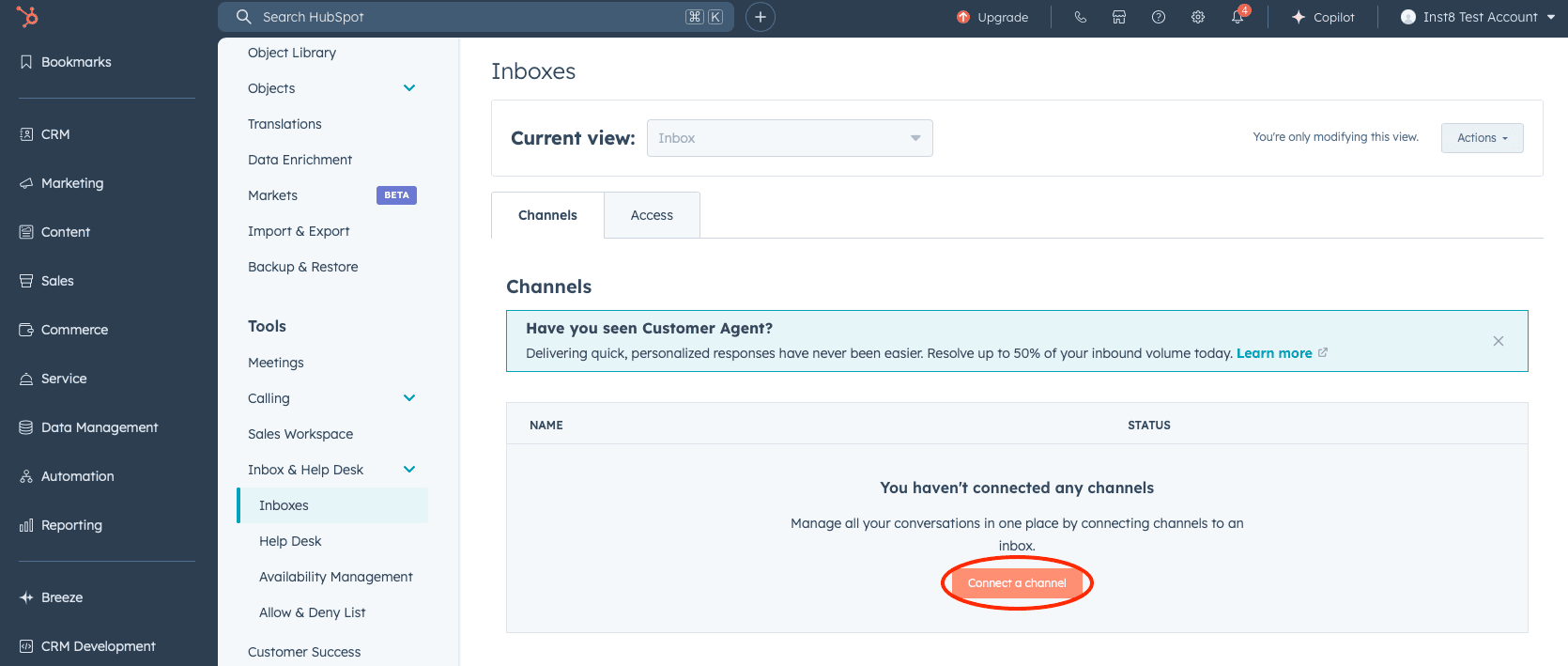
Connect the channel in HubSpot
In HubSpot: Settings → Inbox & Helpdesk → Inboxes → Connect a Channel → select ‘Inst8 SMS Gateway’ → Done.
- 6
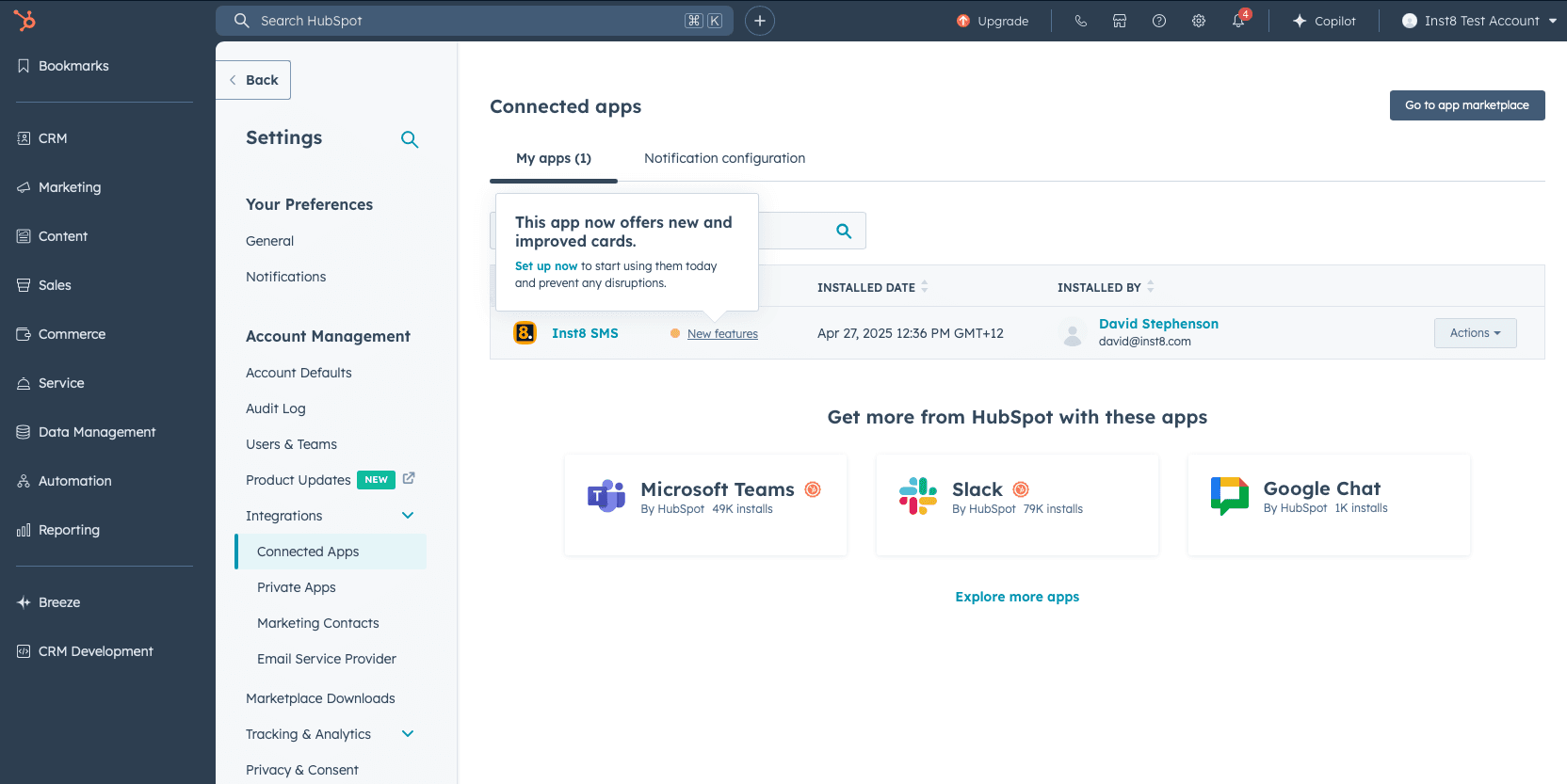
Add the SMS cards
In HubSpot Connected Apps, click ‘Inst8 SMS — New Features’ → ‘Set up Now’. Add the SMS Messenger card to the contact record and the Quick SMS card to the contact preview.
- 7
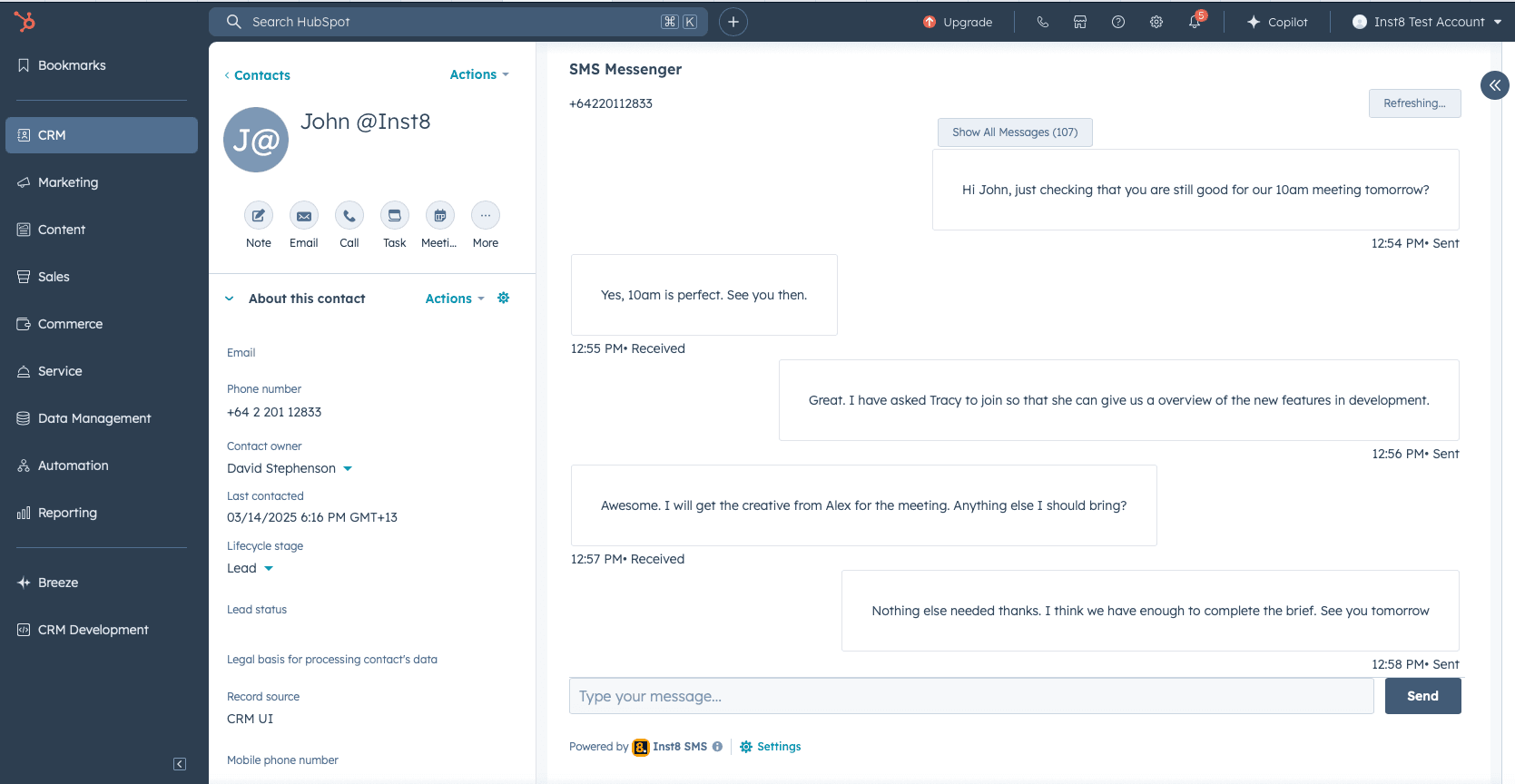
Send a test
Open any contact record and send a test SMS to confirm the connection works end-to-end.
Troubleshooting
- Message not sending
- Check the phone is online and visible in the inst8 dashboard. Confirm SIM credit. Check phone number format includes country code.
- Status not updating
- Refresh the conversation. Check device connection. Make sure the Android app hasn't entered power-saving mode.
- Character limits
- Single SMS = 160 chars (ASCII). Longer messages split into segments — each subsequent segment is 153 chars.
Still stuck?
Message us on WhatsApp — usually answered in under an hour.