inst8
Best practices · HighLevel

HighLevel best practices and settings.

Seven small things to get right when you run the inst8 SMS gateway with HighLevel. These are the questions support gets asked most often. Worth ten minutes the first time you set things up.

In this guide

  1. 1Use a dedicated device
  2. 2Make sure the service is running
  3. 3Turn off RCS on the device
  4. 4Drip your bulk sends
  5. 5Use multi-device, multi-SIM for higher volume
  6. 6“Access denied” in the app menu is normal
  7. 7Stop HighLevel creating duplicate contacts

01

Use a dedicated device.

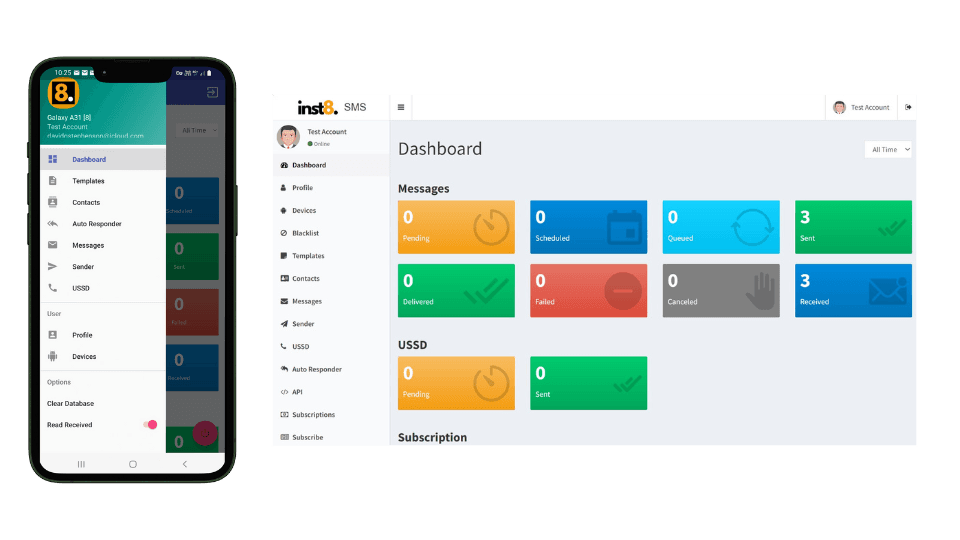
It's fine to use your own Android phone and SIM card when you're testing inst8 on a trial account. The moment you start sending and receiving messages with real customers, swap to a dedicated phone with a dedicated SIM.

That way only prospect and customer text messages get routed into your HighLevel conversations inbox. Your personal traffic, two-factor codes and family group chats stay on your own phone, where they belong.
Use a dedicated device — illustration

02

Make sure the service is running.

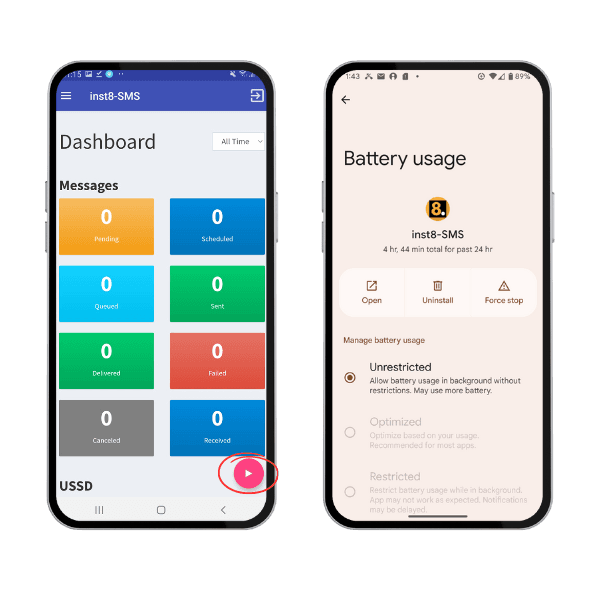
After you've installed and connected the inst8 mobile app, start the service on the phone by pressing the pink play button on the app dashboard. The service then runs in the background and is always ready to relay messages between HighLevel and the gateway.

Make sure there are no battery-saver settings that might restrict the app or put it to sleep. If you see a high volume of pending messages in the gateway dashboard, the most common cause is the service silently stopping on the phone.

Make sure the service is running — illustration

03

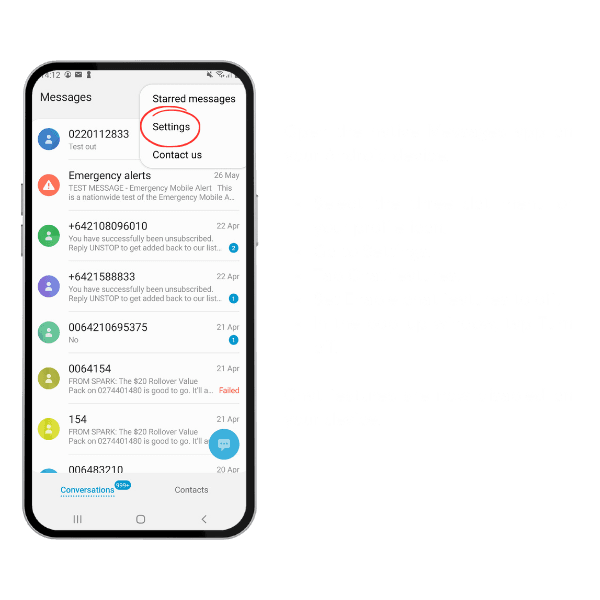
Turn off RCS on the device.

Disable RCS on the connected Android phone. RCS is the modern iMessage-style protocol on Android. If both the sender and the recipient have it switched on, the message goes out over Wi-Fi/4G as an RCS conversation instead of as a normal SMS, which means it bypasses the inst8 gateway entirely. Any replies sent back over RCS won't register in HighLevel.

Messages to iPhones are always safe. iPhones don't support RCS in the inst8-compatible way, so they fall back to standard SMS automatically.

Turn off RCS on the device — illustration

04

Drip your bulk sends.

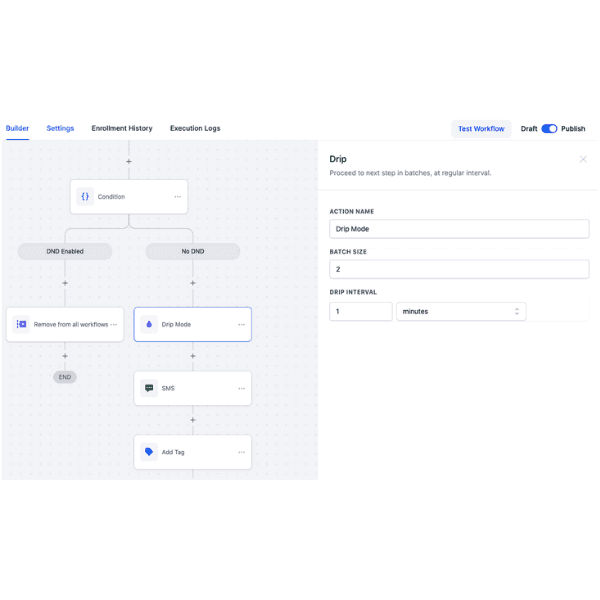
Use the Drip feature inside HighLevel automations and workflows whenever you're sending in bulk. It paces the outbound queue so you don't overload the SIM card and trigger a carrier block.

Every country and mobile provider has its own per-day SMS limit. Most US providers cap a single SIM somewhere between 100 and 150 messages before the carrier flags the number. As a safe default we recommend a rate of 1 message per minute, which keeps you well clear of every provider we've seen.

You can also attach more than one device to a single HighLevel sub-account. The gateway then splits the outbound queue across them and your effective sending capacity goes up linearly with the number of devices.

Drip your bulk sends — illustration

05

Use multi-device, multi-SIM for higher volume.

The gateway lets you attach multiple Android devices (and multiple SIM cards) to a single HighLevel sub-account. Outbound messages get evenly split across all connected devices, which is how you push real volume through markets with low per-SIM provider limits.

There's a contact–number binding feature that binds a contact to whichever number they first replied to. From then on, all follow-up messages to that contact go out from the same number, so your conversation thread stays coherent even across multiple SIMs.

To configure it: connect the devices and SIMs in the gateway dashboard, then use the HighLevel Connection page to link them all to the sub-account. Note: each SIM is bound to a single sub-account, but the device isn't — most Android phones are dual-SIM, so one physical device can serve two different sub-accounts at once (one SIM each).

06

“Access denied” in the app menu is normal.

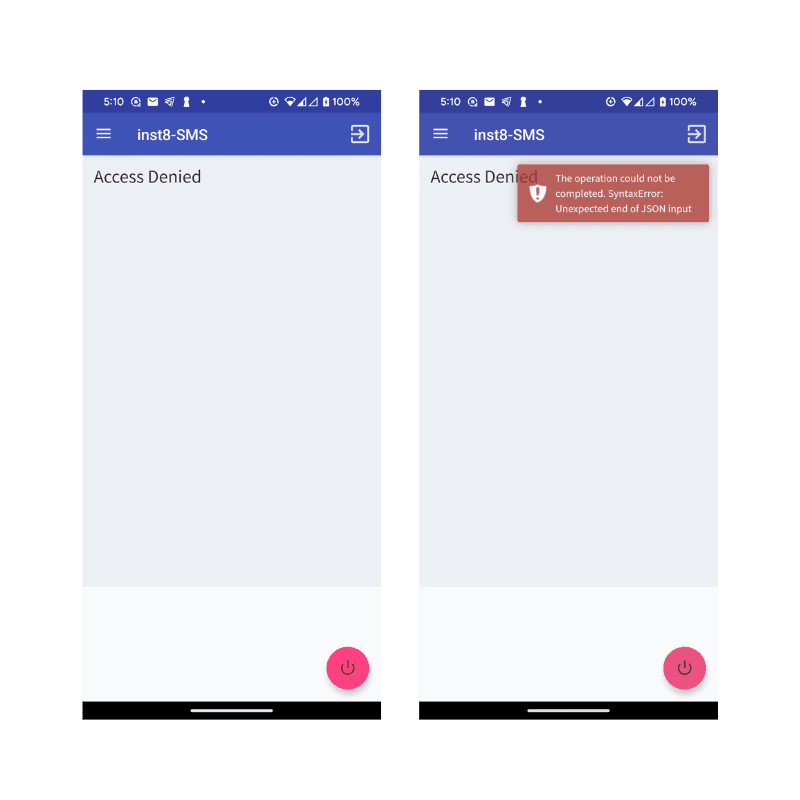
If you try to browse the menu in the inst8 mobile app you'll see an Access Denied error. This is by design.

The app used to show messages from every device linked to your main inst8 gateway account, which was a privacy problem for agencies running multiple clients on one plan. We locked that down so the app only shows the device dashboard. For everything else, sign in to your gateway account in a browser.

“Access denied” in the app menu is normal — illustration

07

Stop HighLevel creating duplicate contacts.

A surprisingly common issue: every inbound SMS creates a new contact in HighLevel instead of attaching to the existing one.

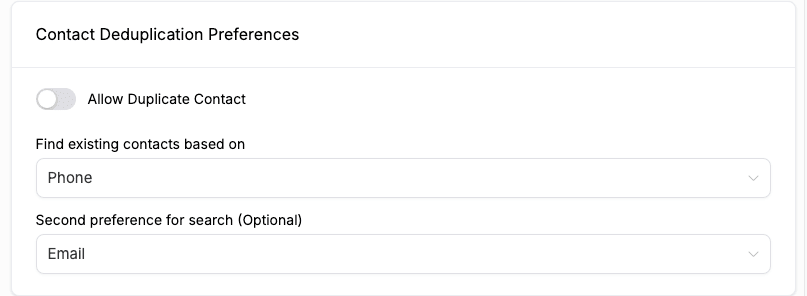
Fix it in your HighLevel sub-account settings. Go to Business Profile, find the Allow Duplicate Contact setting, and make sure it's set to OFF with both phone and email selected as the dedup keys.

From that point on, when a customer texts you for the first time HighLevel will look them up by phone number and attach the new conversation to the matching contact instead of creating a duplicate.

Stop HighLevel creating duplicate contacts — illustration

That's the lot.

Most issues we see in support come down to one of these seven things. Get them right once at setup and the gateway runs itself from there.